Find your user ID
The bot's owner can use owner-only commands, gets update notices, and can always control the music. The bot knows
it's you by your Discord user ID: a number 17 to 20 digits long, such as 123456789012345678. It isn't your
username.
Turn on Developer Mode
Discord only shows IDs once Developer Mode is on.
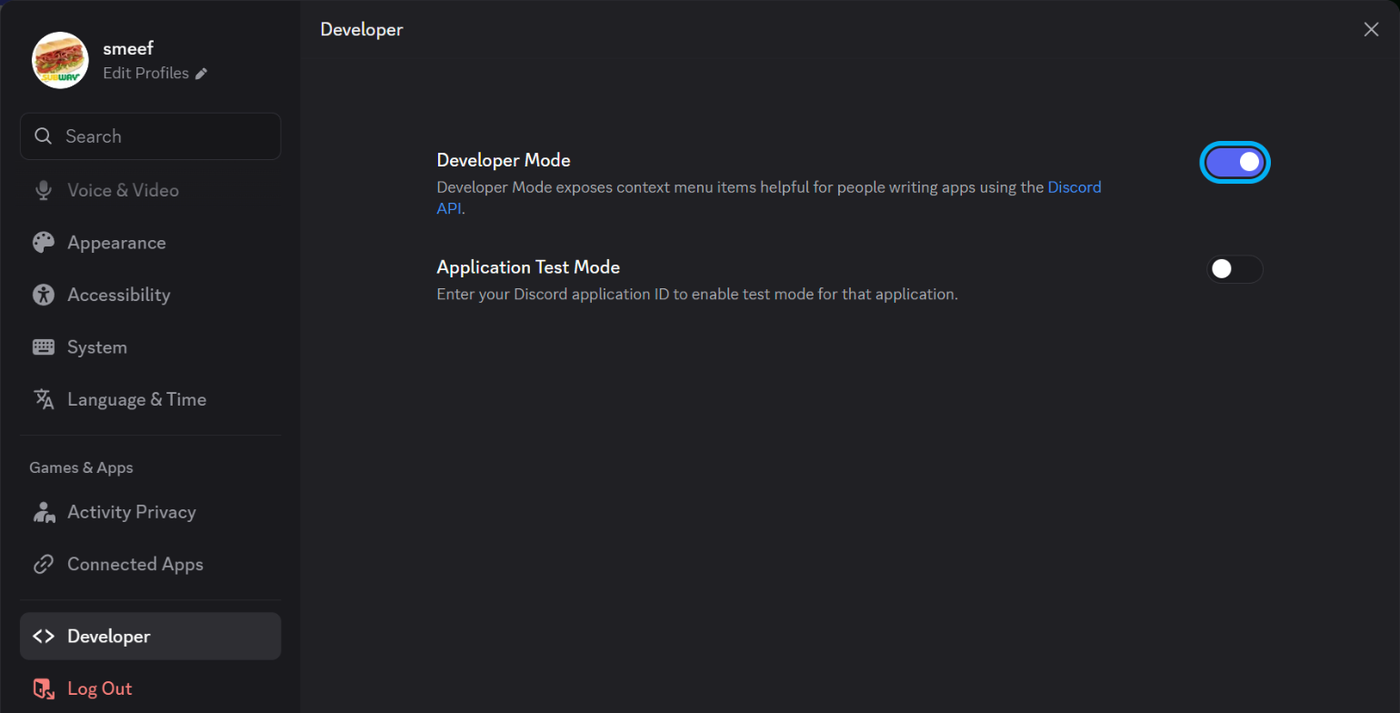
- In Discord, open User Settings (the gear next to your name).
- Go to Developer, near the bottom of the list. Older versions of Discord call it Advanced.
- Turn on Developer Mode.
Copy your ID
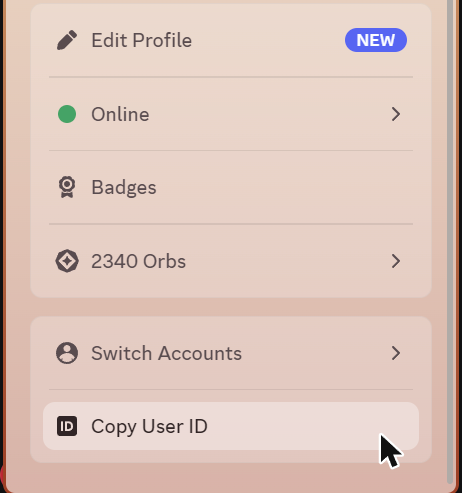
- Click your avatar in the bottom-left corner of Discord.
- Choose Copy User ID at the bottom of the menu that opens. You can also right-click your name in a server's member list or on one of your messages (long-press on a phone) and choose Copy User ID there.
You'll paste this number when the bot asks for the owner on its first run, or into config.txt:
discord {
  owner = 123456789012345678
}
The owner value is a plain number, without quotes.
Not the bot's ID
Make sure you copy your ID, not the bot's or the server's. If owner-only commands such as shutdown say
you don't have permission, the ID is probably wrong.