Invite the bot
Your bot needs an invite link before it can join a server. You need the Manage Server permission in that server.
Use the link the bot prints
When the bot starts and isn't in any server yet, it prints an invite link in the console, and in a pop-up if the desktop app is open:
This bot is not on any guilds! Use the following link to add the bot to your guilds!
https://discord.com/oauth2/authorize?client_id=...&permissions=...&scope=bot
Open the link, pick your server and select Authorize. The link already asks for the right permissions.
Or make a link in the Developer Portal
- Open your application in the Developer Portal and go to OAuth2.
- In OAuth2 URL Generator, tick the scope bot. It includes
applications.commands, which slash commands need; ticking that as well does no harm. - Under Bot Permissions, tick the permissions listed below.
- Copy the generated URL at the bottom, open it, pick your server and select Authorize.
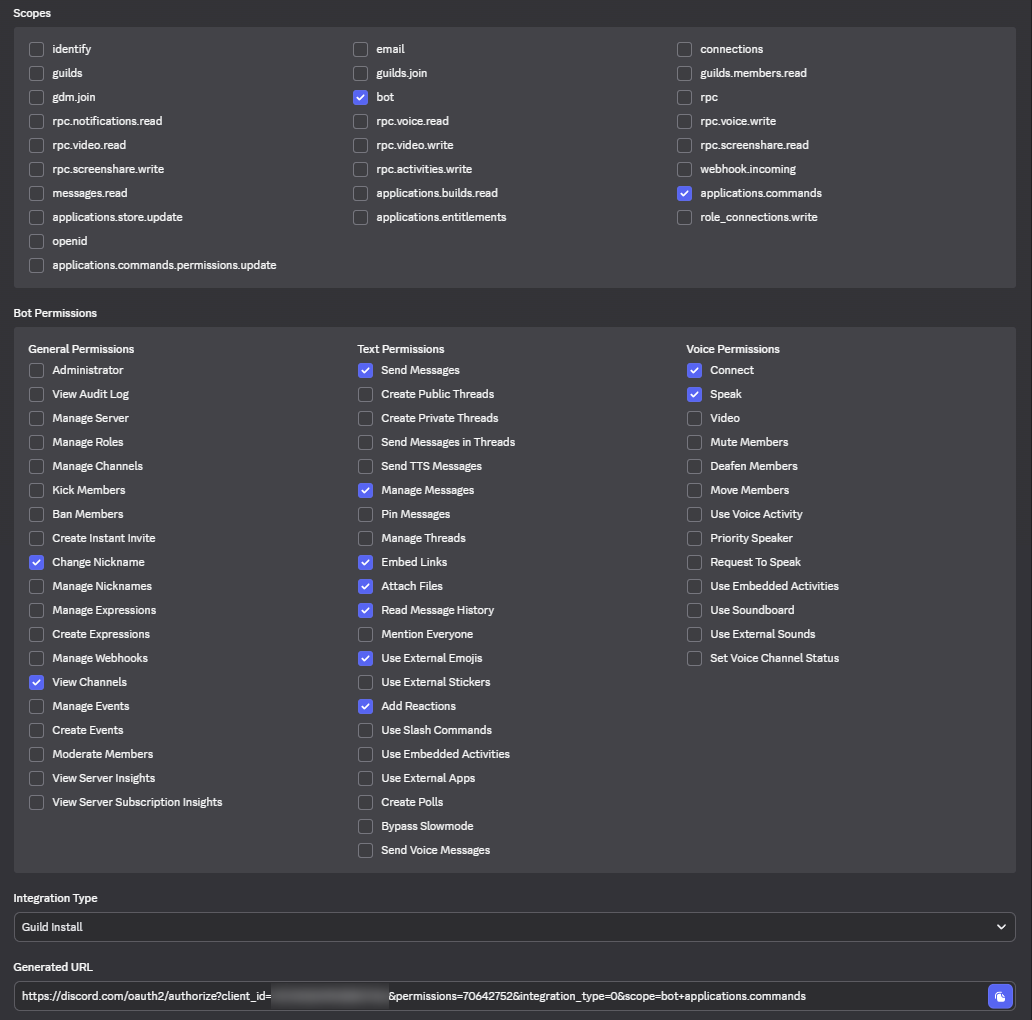
Permissions the bot uses
| Permission | Why |
|---|---|
| View Channels | See the text and voice channels it works in. |
| Send Messages | Reply to commands. |
| Read Message History | Edit and follow up on its own messages. |
| Add Reactions | Add the numbered reactions you pick from in search results. |
| Embed Links | Show now-playing and queue messages. |
| Attach Files | Send files, such as the owner's debug report. |
| Manage Messages | Clean up menus and the music channel with clearchannel. |
| Use External Emojis | Use custom emojis in its messages. |
| Connect | Join voice channels. |
| Speak | Play music. |
| Change Nickname | Part of the bot's standard set. It doesn't rename itself today. |
Check it works
Join a voice channel and type /play followed by a song name. Slash commands can take a minute to appear the
first time. If they don't show up, see Troubleshooting.
Next: Run with Docker, or keep it running with Run as a service.